Data & Sets
Everything starts on the Sets panel (the first icon in the left rail).
Projects, folders, and sets
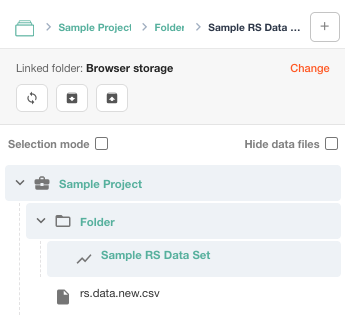
- A project holds your data files and the sets built from them.
- Folders organize sets inside a project.
- A set is one model: a data file plus the model settings you choose.
- Data files (CSV and Excel) are listed alongside sets. Turn on Hide data files to list only sets.
The breadcrumb at the top of the panel shows where you are; click a level to go back to it.
Actions on each item
Click the … button on an item for its actions:
| Item | Actions |
|---|---|
| Project | New Folder, New Model, New Datafile, Rename, Copy, Delete |
| Folder | New Folder, New Model, New Datafile, Rename, Copy, Delete |
| Set | Copy Set, Set Details, Delete Set |
| Data file | Create Model, Download CSV, Delete Dataset |
To delete or export several items at once, turn on Selection mode, tick the items, and use the buttons in the selection bar.
Creating a set
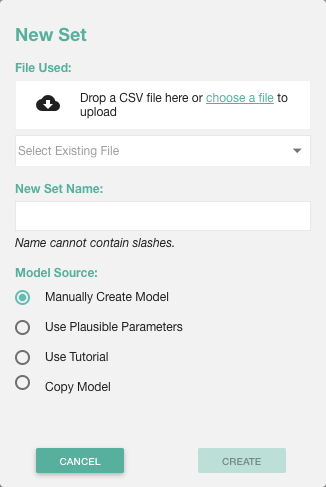
Click + on the panel header (or New Model in a project or folder menu) to open the New Set dialog:
- File Used. Drop a file or choose one to upload, or pick a file already in the project with Select Existing File. Signed-in accounts can upload CSV, Excel (.xlsx), and Rdata files; local sessions accept CSV and Excel. If webENA finds missing column names or columns with empty/NA values, a warning icon lists them.
- New Set Name. Names can't contain slashes.
- Folder (signed-in accounts). Create the folder first from the project's menu if it doesn't exist yet.
- Model Source:
- Manually Create Model (default): start empty and choose everything yourself.
- Use Plausible Parameters: let webENA suggest units, horizons, and codes from the data.
- Use Tutorial: open the new set in the setup wizard, which builds its model step by step from your data's columns.
- Copy Model: reuse the settings of another set in the project.
Set details
Set Details (from a set's … menu) shows the set's data file, its units, horizons, and codes, the window type, whether sphere normalization and a means rotation are used, and a description you can edit.
Copying a set
Copy Set makes an independent copy with the same settings, so you can try a change without losing the original. The copy keeps the original's rotation, so it can also be used with Use Rotation Matrix From.
Local sessions: folders, backups, and imports
In a local session the Sets panel adds storage controls:
- Link Folder (Chrome and Edge): store projects as files in a folder on your computer. Sync re-reads the folder; Change links a different one. If the browser loses access to the folder (for example after a restart), click Reconnect Folder.
- Use In-Browser Storage: keep projects in the browser instead of a folder.
- Backup: export the current project as a zip file.
- Import: load a project from a backup zip, or from a project zip made by another tool such as the ENA MCP server. Each set opens with the settings in its file (window, rotation, plot options, group colors and mean options); anything the file leaves out gets webENA's default. The first time you open an imported set, it also shows the comparison it was saved with.
To remove everything stored in this browser, use Settings › Account & Storage › Clear local session data. This can't be undone.