Building a Model
The Model tab defines what ENA models. It has four tabs, Units, Horizons, Windows, and Codes. Each tab's ? icon summarizes it and links here.
A model needs at least two units, a horizon, and three codes. Until it has them, the plot area shows a checklist of what is missing.
Units
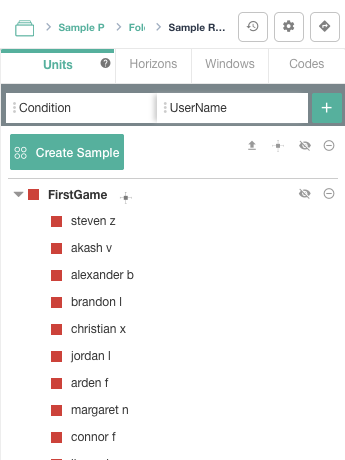
Units are the things whose networks you want to model: people, teams, documents, or anything else. Every line of data belongs to one unit, and ENA builds one network, and one point in the plot, per unit.
- Click + to add a column. Each unique value (or combination of values)
becomes a unit. Choosing
Conditionand thenUserName, for example, groups each person under their condition. - Drag the column chips to change the nesting order, or click × to remove one.
- Once the model is built, the tab lists the units as a tree, grouped by the columns you chose. See Plots & Units for showing, hiding, excluding, coloring, and grouping units.
Horizons
Previously called Conversation.
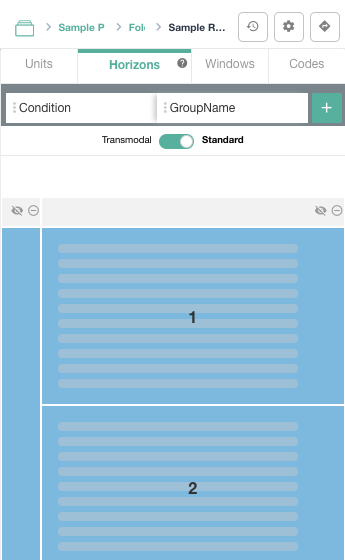
A horizon is the boundary within which connections are made. Lines in different horizons are never connected to each other, even if they are next to each other in the file. Typical horizons are a group's activity, a class session, or a day.
- Click + to add one or more columns; each unique combination is one horizon.
- Once the model is built, the tab lists the horizons. Use the icons beside each one to hide it or exclude it from the model, and the icons on each column to do the same for all of them at once. An excluded horizon's lines are left out entirely: they are not modeled and are not in any window.
- The Transmodal / Standard switch at the top chooses the model type. In a transmodal model you can also choose Flexible or Fixed horizons; see Transmodal Analysis.
Windows
Previously called Stanzas.
The window decides which lines within a horizon count as connected. Choose the window type under Advanced Options › Window:
- Moving window (default). Each line is connected to the lines just before it, within the same horizon. This models connections between ideas that are close together in time.
- Infinite window. Each line is connected to every earlier line in its horizon.
- Threaded window isn't available yet.
For a moving window, the Windows tab has:
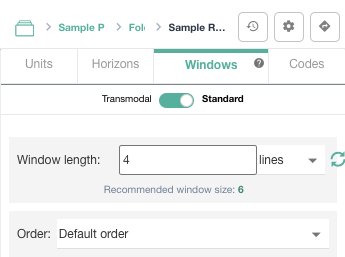
- Window length. How many lines a window spans, counting the current line. webENA shows a recommended window size for your data, and a new model starts on it. While the window is on the recommendation, it moves with it as you change units, horizons, or codes, until you type a different length. Click the refresh icon to recompute the recommendation and go back to it. Opening a saved model never changes its window.
- Order. The order lines are read in. Default order uses the order of the rows in your file; choose a column to sort by it instead (lines with the same value keep their file order). The Data View shows windows in the same order.
Transmodal models add more window controls; see Transmodal Analysis.
Codes
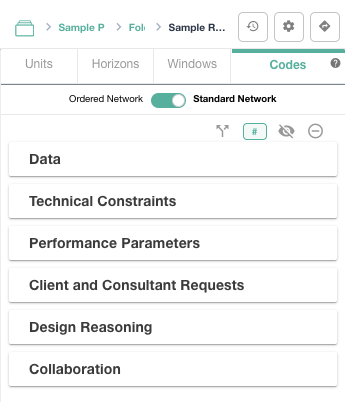
Codes are the concepts whose connections you want to model. Each code is a column in your data, usually 0 or 1 for absent or present; fractional or weighted values also work. Choose at least three.
- Use the exclude icon on a code card to leave it out of the model, drag the cards to change their order (the model uses this order, and the set keeps it), and use the hide icon to keep a code in the model but leave it out of the drawn networks.
- Highlight codes to emphasize their connections in the network.
- The 0/1 · # toggle switches between treating code values as binary (present or not) and using their numeric values.
- The Compound & Nested Codes icon (a forked arrow) opens the compound and nested code editor; see Compound & Nested Codes.
Standard and ordered networks
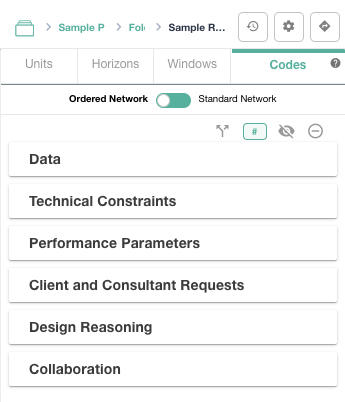
The switch at the top of the Codes tab chooses the network type:
- Standard Network (ENA). Connections are undirected: A–B is the same connection as B–A.
- Ordered Network (ONA). Connections are directed: a line responding with B to an earlier A is an A → B connection, distinct from B → A. Ordered networks draw arrows and use the full connection matrix.
Weighted models aren't available for ordered networks.